| Domain | Description |
|---|---|
| `replicated.app` * | Required when the Replicated SDK is included. Application metadata is pulled from `replicated.app`, and the application sends its version, license ID, and application ID. This domain is owned by Replicated, Inc., which is headquartered in Los Angeles, CA. For IP addresses, see [replicatedhq/ips](https://github.com/replicatedhq/ips/blob/main/ip_addresses.json#L60-L65). |
| `registry.replicated.com` | Required only for accounts not yet using the single-registry model. This domain is owned by Replicated, Inc., which is headquartered in Los Angeles, CA. For IP addresses, see [replicatedhq/ips](https://github.com/replicatedhq/ips/blob/main/ip_addresses.json#L20-L25). |
| `proxy.replicated.com` | Private images and Helm charts are pulled through the proxy registry. This domain is owned by Replicated, Inc., which is headquartered in Los Angeles, CA. For IP addresses, see [replicatedhq/ips](https://github.com/replicatedhq/ips/blob/main/ip_addresses.json#L52-L57). |
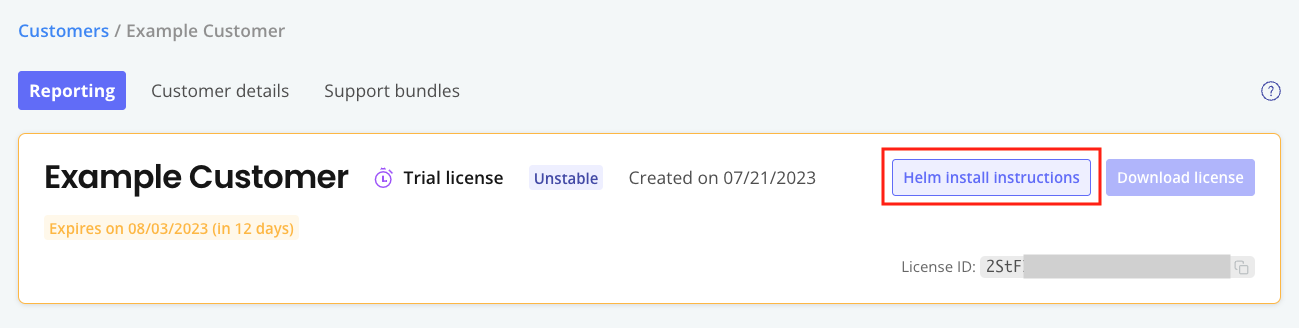 [View a larger image](/images/helm-install-button.png)
:::note
Helm charts marked with the `kots.io/installer-only: "true"` annotation will not appear in the Helm install instructions. These charts are deployed only when using Replicated installers (Embedded Cluster, KOTS, and kURL). For more information, see [HelmChart v2](/reference/custom-resource-helmchart-v2).
:::
1. In the **Helm install instructions** dialog, run the first command to log in:
```bash
helm registry login proxy.replicated.com --username EMAIL_ADDRESS --password LICENSE_ID
```
Where:
* `EMAIL_ADDRESS` is the customer's email address
* `LICENSE_ID` is the ID of the customer's license
:::note
You can safely ignore `WARNING: Using --password via the CLI is insecure.` The warning appears because the password is stored in bash history.
To avoid the warning, click **(show advanced)** to use a command that prompts for the password.
:::
:::note
Newer accounts log in to `proxy.replicated.com` and pull from `proxy.replicated.com/registry/...`, routing all image and chart pulls through one registry. Older accounts might instead see `registry.replicated.com` in the dialog. Both work, so run the commands shown. To switch to the single-registry commands, contact your Replicated account representative.
:::
1. (Optional) Run the second and third commands to install the preflight plugin and run preflight checks. If no preflight checks are defined, these commands are not displayed. For more information about defining and running preflight checks, see [About Preflight Checks and Support Bundles](preflight-support-bundle-about).
1. Run the fourth command to install using Helm:
```bash
helm install RELEASE_NAME oci://proxy.replicated.com/registry/APP_SLUG/CHANNEL/CHART_NAME
```
Where:
* `RELEASE_NAME` is the name of the Helm release.
* `APP_SLUG` is the slug for the application. For information about how to find the application slug, see [Get the Application Slug](/vendor/vendor-portal-manage-app#slug).
* `CHANNEL` is the lowercased name of the channel where the release was promoted, such as `beta` or `unstable`. Channel is not required for releases promoted to the Stable channel.
* `CHART_NAME` is the name of the Helm chart.
:::note
To install the SDK with custom RBAC permissions, include the `--set` flag with the `helm install` command to override the value of the `replicated.serviceAccountName` field with a custom service account. For more information, see [Customizing RBAC for the SDK](/vendor/replicated-sdk-customizing#customize-rbac-for-the-sdk).
:::
1. (Optional) In the Vendor Portal, click **Customers**. You can see that the customer you used to install is marked as **Active** and the details about the application instance are listed under the customer name.
**Example**:

[View a larger version of this image](/images/sdk-customer-active-example.png)
[View a larger image](/images/helm-install-button.png)
:::note
Helm charts marked with the `kots.io/installer-only: "true"` annotation will not appear in the Helm install instructions. These charts are deployed only when using Replicated installers (Embedded Cluster, KOTS, and kURL). For more information, see [HelmChart v2](/reference/custom-resource-helmchart-v2).
:::
1. In the **Helm install instructions** dialog, run the first command to log in:
```bash
helm registry login proxy.replicated.com --username EMAIL_ADDRESS --password LICENSE_ID
```
Where:
* `EMAIL_ADDRESS` is the customer's email address
* `LICENSE_ID` is the ID of the customer's license
:::note
You can safely ignore `WARNING: Using --password via the CLI is insecure.` The warning appears because the password is stored in bash history.
To avoid the warning, click **(show advanced)** to use a command that prompts for the password.
:::
:::note
Newer accounts log in to `proxy.replicated.com` and pull from `proxy.replicated.com/registry/...`, routing all image and chart pulls through one registry. Older accounts might instead see `registry.replicated.com` in the dialog. Both work, so run the commands shown. To switch to the single-registry commands, contact your Replicated account representative.
:::
1. (Optional) Run the second and third commands to install the preflight plugin and run preflight checks. If no preflight checks are defined, these commands are not displayed. For more information about defining and running preflight checks, see [About Preflight Checks and Support Bundles](preflight-support-bundle-about).
1. Run the fourth command to install using Helm:
```bash
helm install RELEASE_NAME oci://proxy.replicated.com/registry/APP_SLUG/CHANNEL/CHART_NAME
```
Where:
* `RELEASE_NAME` is the name of the Helm release.
* `APP_SLUG` is the slug for the application. For information about how to find the application slug, see [Get the Application Slug](/vendor/vendor-portal-manage-app#slug).
* `CHANNEL` is the lowercased name of the channel where the release was promoted, such as `beta` or `unstable`. Channel is not required for releases promoted to the Stable channel.
* `CHART_NAME` is the name of the Helm chart.
:::note
To install the SDK with custom RBAC permissions, include the `--set` flag with the `helm install` command to override the value of the `replicated.serviceAccountName` field with a custom service account. For more information, see [Customizing RBAC for the SDK](/vendor/replicated-sdk-customizing#customize-rbac-for-the-sdk).
:::
1. (Optional) In the Vendor Portal, click **Customers**. You can see that the customer you used to install is marked as **Active** and the details about the application instance are listed under the customer name.
**Example**:

[View a larger version of this image](/images/sdk-customer-active-example.png)